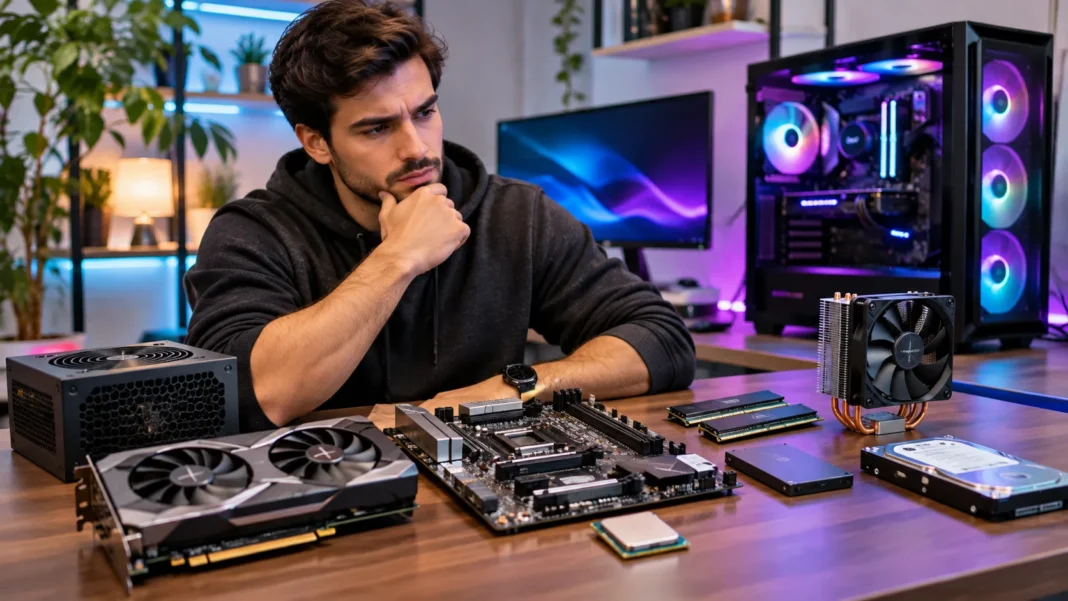
Buying computer hardware can be confusing, especially when different brands, specifications, and prices compete for your attention. A faster processor, larger memory capacity, or expensive graphics card may sound impressive. However, the best hardware is not always the most expensive option. The right choice depends on what you need your computer to do.
Computer hardware includes the physical components that allow a computer to operate. These parts work together to process information, store files, display graphics, and run applications. Understanding their functions can help you avoid unnecessary spending and select components that deliver reliable performance.
Before purchasing computer hardware, it is important to consider compatibility, performance requirements, upgrade options, and long-term value. This guide explains the essential components of a computer and what to evaluate before buying them. It also covers common purchasing mistakes, hardware specifications, and practical ways to make informed decisions.
What Is Computer Hardware?
Computer hardware refers to the physical parts that make up a computer system. These include the processor, motherboard, memory, storage devices, graphics card, and power supply. External devices such as monitors, keyboards, and mice are also considered hardware. Each component performs a specific function that contributes to the computer’s overall operation.
Hardware works together with software to perform everyday computing tasks. For example, the processor executes instructions while memory temporarily stores information needed by active programs. Storage devices keep files and applications available even after the computer is turned off. These components must communicate correctly to ensure dependable performance.
Understanding the difference between hardware components makes purchasing decisions easier. A powerful processor cannot compensate for insufficient memory in every situation. Similarly, a fast storage drive may improve loading times without significantly increasing graphics performance. Choosing balanced components is often more useful than investing heavily in one specification.
Why Choosing the Right Computer Hardware Matters
The right hardware determines how effectively a computer handles your daily activities. Basic tasks such as browsing, writing documents, and attending online meetings generally require fewer resources than video editing or complex engineering software. Matching hardware to your activities can improve efficiency. It also helps prevent spending money on features you may never use.
Hardware quality can also influence reliability and long-term ownership costs. Poorly matched components may create performance limitations or make future upgrades difficult. An unreliable power supply or inadequate cooling system can cause additional problems. Evaluating the entire computer system helps reduce avoidable expenses.
Another important consideration is how your needs may change over time. A computer that performs well today may struggle with more demanding applications later. Choosing suitable memory capacity, storage expansion options, and compatible components can extend its useful life. However, paying for excessive specifications is not always necessary.
Understand Your Computing Needs Before Buying
Start by identifying the activities you expect to perform most frequently. General office work, online learning, web browsing, and streaming usually need a balanced computer rather than specialized high-performance hardware. A modern processor, adequate memory, and solid-state storage can provide a responsive experience. The exact requirements depend on your applications and operating system.
More demanding activities may require additional computing resources. Video editing, three-dimensional modeling, software development, and certain scientific applications can benefit from stronger processors or dedicated graphics cards. Some programs also require substantial memory or storage capacity. Checking the recommended system requirements of your software helps identify the hardware that matters most.
Avoid choosing components based only on advertising claims or impressive numbers. A specification that benefits one application may have little effect on another. For example, a dedicated graphics card may be valuable for certain rendering tasks but unnecessary for basic document editing. Understanding your workload is the foundation of a sensible purchasing decision.
Central Processing Unit: What to Look For
The central processing unit, or CPU, performs calculations and executes instructions that allow software to operate. It is one of the most important components in a computer. Processor performance affects multitasking, application responsiveness, and demanding computational workloads. However, performance depends on several characteristics rather than one specification.
Core count, thread count, architecture, and clock speed all influence processor capabilities. More cores can improve performance in applications designed to use multiple processing threads. Higher clock speeds may help certain tasks, but processors with different architectures cannot be compared accurately using clock speed alone. Independent performance tests offer more useful comparisons.
Before buying a CPU, confirm that it is compatible with your motherboard and cooling system. Different processors use specific sockets and may require particular firmware versions. Power consumption and heat output also affect component selection. A suitable processor should meet your actual performance needs without creating unnecessary compatibility or cooling problems.
Motherboards and Hardware Compatibility
The motherboard connects the major components of a computer and allows them to communicate. It provides connections for the processor, memory, storage drives, expansion cards, and external devices. Its specifications determine which hardware can be installed. Choosing the wrong motherboard can prevent otherwise functional components from working together.
Processor socket compatibility is one of the first details to check. The motherboard must support the exact CPU model, including any required firmware version. Memory generation, supported capacity, and available expansion slots also matter. A matching socket alone does not guarantee complete compatibility between a processor and motherboard.
Motherboard size is another important consideration. Common desktop form factors include ATX, Micro-ATX, and Mini-ITX. The computer case must support the chosen motherboard dimensions. Before purchasing, check manufacturer specifications for connectivity, storage slots, and future expansion options.
RAM: How Much Memory Do You Really Need?
Random access memory, commonly called RAM, temporarily holds information used by active programs. It allows the processor to access data quickly while applications are running. Insufficient memory can cause slowdowns when several programs compete for available resources. The amount required depends on how the computer will be used.
For many basic computing tasks, 8GB of RAM may be workable, although 16GB provides a more comfortable starting point for modern multitasking. Users working with demanding creative applications, large datasets, or virtual machines may benefit from 32GB or more. These figures are general guidelines rather than universal requirements. Software specifications should guide the final decision.
Compatibility is just as important as capacity. Desktop memory modules must match the motherboard’s supported memory type, such as DDR4 or DDR5. Different generations are not interchangeable. Also consider available memory slots, supported speeds, and whether future upgrades will be possible.
Storage Devices: SSD vs. HDD
Storage devices keep the operating system, applications, documents, and other files available when the computer is turned off. The two familiar storage technologies are solid-state drives and hard disk drives. Both perform the same basic function but use different technologies. Their performance, physical characteristics, and costs can vary significantly.
Solid-state drives, or SSDs, use flash memory and contain no moving mechanical parts. They generally provide faster access to files and applications than traditional hard drives. This can improve startup times, application loading, and everyday responsiveness. Many modern computers use an SSD as their main storage device.
Hard disk drives, or HDDs, use spinning magnetic disks to store information. They can offer economical capacity for large collections of files or backups. However, they are usually slower and more sensitive to mechanical movement than SSDs. Before buying storage, consider capacity, speed, interface compatibility, durability, and backup requirements.
Graphics Cards and Their Importance
A graphics processing unit, or GPU, handles many of the calculations involved in displaying images and processing graphics. Some processors include integrated graphics that are sufficient for everyday computing. Other computers use dedicated graphics cards for more demanding workloads. The correct choice depends on the applications you use.
Dedicated graphics cards can be important for advanced graphics rendering, certain professional software, and GPU-accelerated computing tasks. However, not every application benefits equally from additional graphics power. Video memory capacity, processing performance, and software support should be considered together. A larger memory figure does not automatically indicate a faster graphics card.
Compatibility checks are essential before buying a dedicated GPU. Confirm that the card fits inside the computer case and that the power supply provides suitable connectors and capacity. Cooling requirements and monitor connections also matter. Comparing performance in relevant applications is more useful than relying entirely on product labels.
Power Supply Units: Why Quality Matters
The power supply unit, or PSU, converts electricity from the wall outlet into power that computer components can use. Every major component depends on stable electrical power to function properly. A poorly chosen power supply may create reliability issues. It is therefore an important part of a computer purchase.
Power supplies are commonly rated according to their maximum output in watts. The required capacity depends on the processor, graphics card, and other installed components. Choosing a model with suitable capacity and reasonable headroom can accommodate normal power demands. However, a higher wattage rating does not automatically mean better quality.
Look for reputable manufacturers, appropriate electrical protections, and a reliable warranty. Efficiency certifications may provide information about energy efficiency, but they should not be treated as complete measures of build quality. Confirm that the PSU has the required cables and connectors. Electrical safety and component compatibility should always take priority.
Cooling Systems and Computer Performance
Computer components generate heat while operating, particularly during demanding workloads. Cooling systems help maintain temperatures within their intended operating ranges. Common solutions include air coolers, case fans, and liquid cooling systems. The best option depends on the hardware configuration, available space, and cooling requirements.
Air cooling systems use metal heat sinks and fans to transfer heat away from components. They are widely available and can provide reliable cooling for many computers. Liquid cooling systems transfer heat through a circulating fluid and radiator. They can suit certain high-performance configurations but are not automatically necessary for every computer.
Before buying a cooler, check processor socket support and physical clearance inside the case. Large air coolers may interfere with memory modules or side panels. Liquid cooling systems require suitable radiator mounting locations. Adequate airflow and regular maintenance help cooling equipment operate effectively.
Computer Cases: Size, Airflow, and Design
The computer case houses and protects the internal components. Although appearance is often a major selling point, practical features matter just as much. Case dimensions determine which motherboards, graphics cards, cooling systems, and power supplies will fit. Poor component clearance can create unnecessary installation problems.
Airflow is another important factor when selecting a case. Well-positioned ventilation openings and fans can help remove heat generated by internal components. Some cases prioritize quiet operation, while others emphasize cooling capacity. The best design depends on the system’s power consumption and intended operating environment.
Ease of maintenance should also influence your choice. Removable dust filters, accessible panels, and organized cable-routing spaces can simplify cleaning and upgrades. Front-panel USB connections and other ports may improve convenience. A practical case supports the complete computer system instead of serving only as decoration.
Ports, Connectivity, and Expansion Options
Computer connectivity determines which external devices can be connected and how efficiently information can be transferred. Common connections include USB ports, Ethernet, audio connectors, and display outputs. Different versions of the same interface may support different speeds and features. Checking exact specifications helps prevent misunderstandings.
Modern computers may include USB-C connections, but the connector shape alone does not reveal its capabilities. Some ports support high-speed data transfer, display output, or charging, while others offer fewer features. Similarly, display connections have different resolution and refresh-rate capabilities. Always verify the supported standards rather than relying on appearance.
Expansion options are important when future upgrades are likely. Additional memory slots, storage connections, and PCIe expansion slots can provide flexibility. However, available space does not always guarantee unrestricted expansion. Motherboard limitations, shared connections, and power requirements should be reviewed before buying.
Laptop Hardware vs. Desktop Hardware
Laptops and desktops offer different advantages depending on portability and performance requirements. Laptops combine major hardware components, a display, keyboard, and battery into one device. They are convenient for travel, studying, and working in different locations. However, their compact designs can limit component upgrades and cooling capacity.
Desktop computers generally provide greater flexibility for hardware customization. Many desktop systems allow users to replace memory, storage, graphics cards, and other parts. Larger cases can also accommodate different cooling solutions. However, desktops require additional space and separate peripherals.
When comparing laptop and desktop specifications, remember that similar product names do not always indicate identical performance. Laptop components may operate under different power and thermal limits. Battery life, screen quality, portability, and repairability also influence overall value. Choose the format that suits your routine rather than judging by processor names alone.
New vs. Used Computer Hardware
New computer hardware usually provides clearer warranty coverage and a more predictable ownership history. It may also offer access to newer features and manufacturer support. However, new components can cost more than comparable used alternatives. The best value depends on the specific product, its condition, and its intended use.
Used hardware can provide savings, but it requires careful evaluation. Previous operating conditions, physical wear, and remaining warranty coverage may be difficult to establish. Storage drives, cooling fans, and other components can experience wear over time. Buyers should understand the risks before making a decision.
If considering used equipment, review its exact model, specifications, and available condition information. Confirm that it works as described and check the seller’s return policy where possible. Avoid assuming that a low price automatically represents good value. Reliable performance and reasonable support may justify a higher initial cost.
How to Check Computer Hardware Compatibility
Compatibility checking should begin before any components are purchased. Start with the processor and motherboard, ensuring that the socket, supported CPU list, and required firmware match. Then confirm that the memory type and configuration are supported. These checks help prevent common problems that stop a system from starting.
Next, examine physical dimensions and electrical requirements. The computer case must accommodate the motherboard, graphics card, and cooling equipment. The power supply needs sufficient capacity and the correct connectors. Storage devices must also match the motherboard’s supported interfaces and available slots.
Online compatibility tools can help identify potential conflicts, but they should not replace manufacturer documentation. Product listings occasionally omit details that affect installation. Reviewing manuals and official specifications provides additional confidence. A complete compatibility check can prevent costly returns and unnecessary delays.
How to Compare Computer Hardware Specifications
Computer specifications can appear complicated because manufacturers advertise many different measurements. Processor core counts, memory speeds, storage transfer rates, and graphics performance figures describe separate characteristics. These numbers should not be compared without understanding their purpose. The most useful specifications are those connected to your actual workload.
Independent testing can help reveal differences that marketing descriptions do not fully explain. For example, two processors with similar clock speeds may perform differently because of architectural differences. Storage drives with impressive peak transfer speeds may show smaller differences during ordinary tasks. Real-world application tests provide more meaningful context.
Pay attention to the complete system rather than isolated component rankings. A powerful graphics card may be limited by an unsuitable processor, insufficient memory, or inadequate cooling. Similarly, a premium motherboard may offer features you never use. Balanced performance often delivers better value than purchasing the highest-rated component in every category.
Budget Planning Before Buying Computer Hardware
Establishing a budget helps narrow the available choices and prevents unnecessary spending. Begin by identifying the components required for your main activities. Separate essential features from optional upgrades. This approach makes it easier to compare different configurations without becoming distracted by premium product marketing.
Remember that the total computer cost may extend beyond the main hardware components. A monitor, keyboard, mouse, operating system license, and other accessories may be necessary. Shipping charges, installation services, and taxes can also affect the final expense. Including these costs in the initial budget reduces surprises.
Consider long-term value instead of focusing only on the lowest purchase price. A slightly more expensive component may offer better warranty support, durability, or useful upgrade options. However, premium pricing does not always guarantee better performance. Evaluate whether additional spending produces benefits that matter to your actual needs.
Common Mistakes to Avoid When Buying Computer Hardware
One of the biggest mistakes is purchasing components without checking compatibility. A processor may not work with a particular motherboard, or a graphics card may be too large for the case. Memory modules can also use incompatible standards. Checking these details before ordering helps prevent wasted money and unnecessary frustration.
Another common mistake is paying for specifications that provide little practical benefit. More expensive hardware does not always make everyday tasks noticeably faster. Buyers may focus heavily on processor speed while overlooking memory capacity or storage performance. A balanced system usually provides a better overall experience.
Ignoring warranties, cooling, and future maintenance can also create problems. Low-quality components may be inexpensive initially but costly to replace. Limited repair options can shorten a computer’s useful life. Reading warranty terms and choosing reliable hardware helps protect the overall purchase.
How to Choose Computer Hardware for Long-Term Use
Long-term hardware planning begins with realistic expectations about future workloads. Consider whether you may need more memory, additional storage, or stronger graphics performance later. Selecting compatible components with reasonable expansion options can make upgrades easier. However, future-proofing should not become an excuse for unlimited spending.
Reliability and support are also important. Components from established manufacturers may offer clearer documentation, driver updates, and warranty procedures. These factors can simplify maintenance and troubleshooting. Before buying, verify the exact product’s support period and service conditions rather than relying entirely on brand reputation.
Finally, consider the computer as a complete system. Reliable power delivery, adequate cooling, compatible components, and suitable performance should work together. A well-planned configuration can remain useful for years when maintained appropriately. Smart buying decisions focus on practical needs, not simply the newest available technology.
Conclusion
Buying computer hardware requires understanding how different components affect performance, reliability, and compatibility. The processor, motherboard, memory, storage, graphics card, and power supply all serve important functions. Selecting the right combination can provide a smoother computing experience. The most expensive components are not necessarily the best choice for every user.
Before making a purchase, identify your main computing needs and establish a realistic budget. Compare relevant specifications, verify compatibility, and consider warranty coverage. Pay attention to cooling, connectivity, and future upgrade options as well. These factors can help you avoid common mistakes and unnecessary expenses.
The best computer hardware is the hardware that meets your requirements reliably and efficiently. Whether you are buying a new computer, upgrading an existing system, or selecting individual components, informed decisions can improve long-term value. Taking time to understand the available options makes the buying process easier and more practical.
Frequently Asked Questions
What is the most important computer hardware to buy?
The most important hardware depends on your needs. The CPU, RAM, and storage strongly influence general computer performance, while a dedicated GPU may be important for demanding graphics tasks. Compatibility and overall system balance also matter.
How much RAM do I need for a new computer?
For many everyday activities, 16GB of RAM is a practical starting point. Basic systems may work with 8GB, while demanding creative applications or large workloads may benefit from 32GB or more. Check your software requirements before buying.
Is an SSD better than an HDD?
An SSD generally provides faster startup times, application loading, and file access than an HDD. Hard drives can still be useful for economical bulk storage. The better choice depends on your budget, capacity requirements, and performance needs.
How do I know if computer hardware is compatible?
Check the exact component specifications before purchasing. Confirm processor socket and motherboard support, memory generation, power requirements, physical dimensions, and available connections. Manufacturer documentation and compatibility tools can help identify potential problems.
Should I buy expensive computer hardware?
Not necessarily. Expensive components may offer features or performance that your daily activities do not require. Focus on reliable hardware that meets your needs, provides suitable warranty coverage, and fits your budget.

